

I Turned my iPad into a reMarkable
What started off as a quest for a new device turned into a fun experiment.

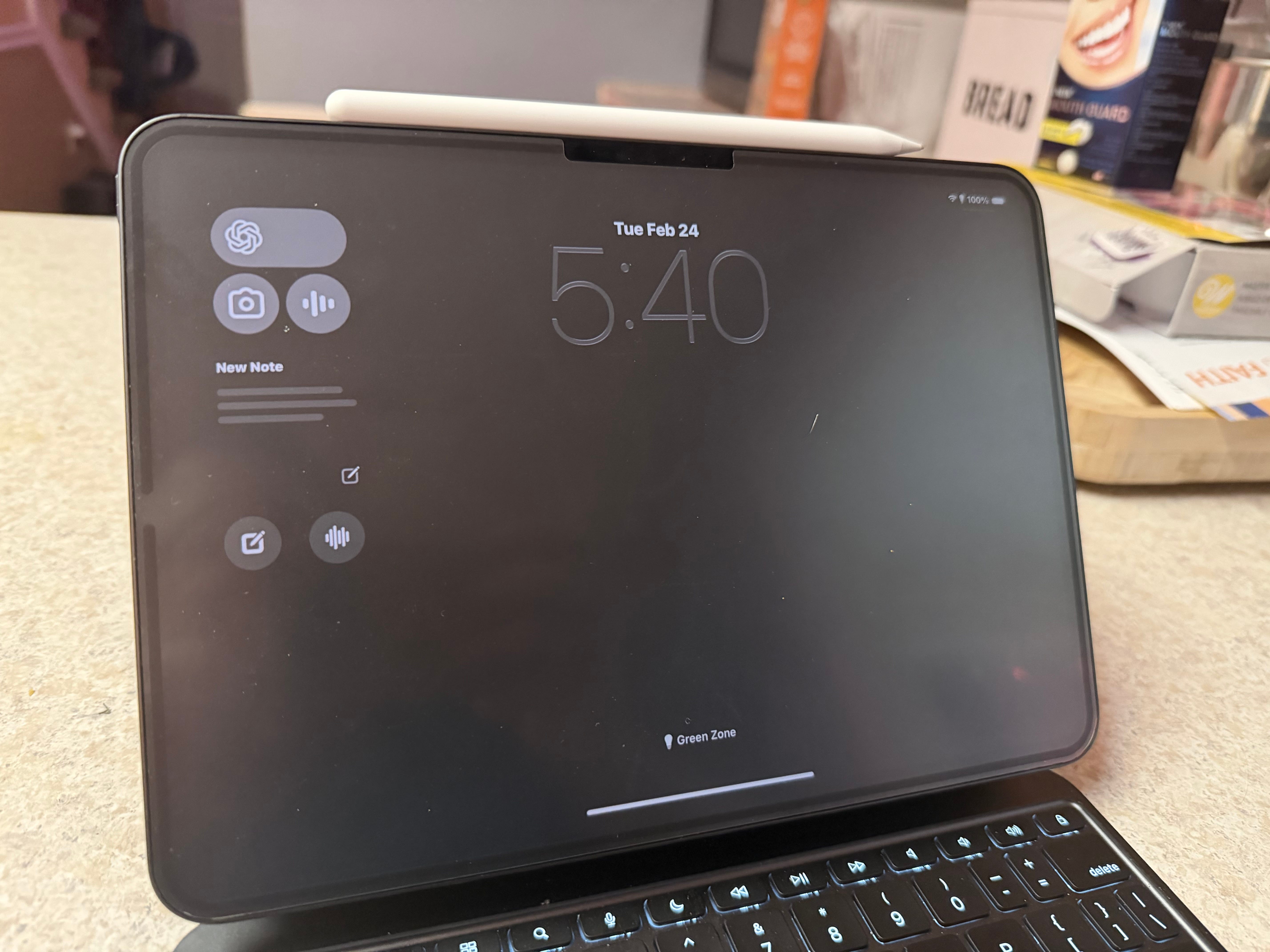
I’ve been on a quest for what is likely a unicorn device.
I want an eInk device I can do long-form writing on, that is distraction-free, but connects to the internet.
I mean…talk about a contradiction of epic proportions.
I’ve considered the Freewrite line of eInk typewriters, but I like a spacious screen so I’m not sure I’d actually like writing on them. But after buying and LOVING the reMarkable Paper Pro Move, I thought the reMarkable 2 + Typefolio keyboard case would solve my problems.
Sadly, it didn’t.
I Ended Up Returning the reMarkable 2
It’s a really nice device. It’s impossibly thin without the Typefolio, and I did enjoy having more room to write and brainstorm.
But the primary reason I bought it was to have a more frictionless, distraction-free writing experience. I can’t really say I got either.
Yes…if I just had the reMarkable, it would have been a very distraction-free experience. But because of the way I write, I’m usually researching and cross referencing.
That’s very hard to do on a device that doesn’t have a browser. I needed to have some device nearby that could use the internet for more than syncing, and that device was usually my phone.
But even if I had left the phone in another room, the experience wasn’t frictionless.
Syncing properly formatted text from the reMarkable was harder than it should have been, and required some clever automations to get it to a usable format in Obsidian.
Proofreading was also harder If the draft was also typo-laden, I couldn’t tell because there was no spellcheck. But I also couldn’t always see the screen super clearly. The reMarkable 2 has no backlight, which means I was relegated to writing in only well-lit areas.
Finally, because I owned both the reMarkable 2 and reMarkable Paper Pro Move, I was struggling with which one to use while I was home. I liked more space, but there was a small, unforeseen problem.
Since the devices are two different sizes, the pages generated on one device didn’t look great on the other1.
Because I love the Paper Pro Move so much for its portability, when I realized the optimal number of reMarkable devices per person is probably one, choosing which to keep was easy.
One Month with the reMarkable Paper Pro Move

You probably know the parable of the “Two Wolves” you have fighting inside of you — the one the represents positivity and the one that represents negativity. The one you feed wins.
But that still left me with the problem of distraction-free writing.
That’s when I turned to my iPad.
Why the iPad is a Near-Perfect Writing Device
I really love the physical limits of the iPad. It’s smaller and by default, more focused. You have to go through great lengths to make it accommodate more than one app at a time…though admittedly recent iPadOS updates have made it easier.
It’s also really light, and the setup is flexible. While the reMarkable 2 works with exactly one keyboard, the iPad works with basically any keyboard. I can make any adjustments I need to based on where and when I’m writing.
There are also lots of writing apps for the iPad, including my favorites: Obsidian and Ulysses.
But notice I said near perfect.
Drawbacks of Writing on the iPad
The reMarkable is pretty much a single-serving device. You use it to write notes…either by hand or typing.
The iPad is still a distraction-filled device if you let it be. Its versatility means it can be used for anything, from writing, to consuming media, to creating media.
Plus there’s notifications.
That’s why I set out to reMarkable-ify my iPad Pro. I want to make it as much as distraction-free writing device as humanly possible.
Here’s what I did.
The Exterior
Let’s start with the easy part. I have the 11” M4 iPad Pro. It’s really thin, and super light. It also has a beautiful OLED screen.
That OLED screen offers a benefit the reMarkable couldn’t — it looks great, even in low/no light. But the colors also really pop, and I wanted this to feel more like a notebook than a beautiful media device.
I picked up the Rock Paper Pencil V3 from Astropad. It adds a coarse texture to the screen that makes it feel a lot more like writing on paper…or the reMarkable.
But it also has this blunting effect on the screen. It doesn’t make it harder to see in low light2, but it does diminish the experience of watching movies on it. When I had the V2, I would take it off when I wanted to watch something, and put it back on when I wanted to write.
Luckily, it’s really easy to take on and off…but I was doing it so much that I eventually just kept it off, and it degraded, before getting lost.
So I replaced it with the new version, and my intention is to always keep it on. After all, there’s not much I’ll be able to watch on it.
I did a lot to the device to ensure that it would be distraction-free, making both significant app changes, and settings changes. Let’s take them one at a time, starting with apps.
App Changes
I decided the only apps I’m keeping on my iPad fall into three categories:
Writing
Research
Required/Systems
As it turns out, you can delete a surprising amount of stock apps, including FaceTime, Calculator, Weather, and Music.
That leaves me with just 44 apps on my iPad, including the ones I couldn’t delete (like Phone, Messages, Settings, etc).
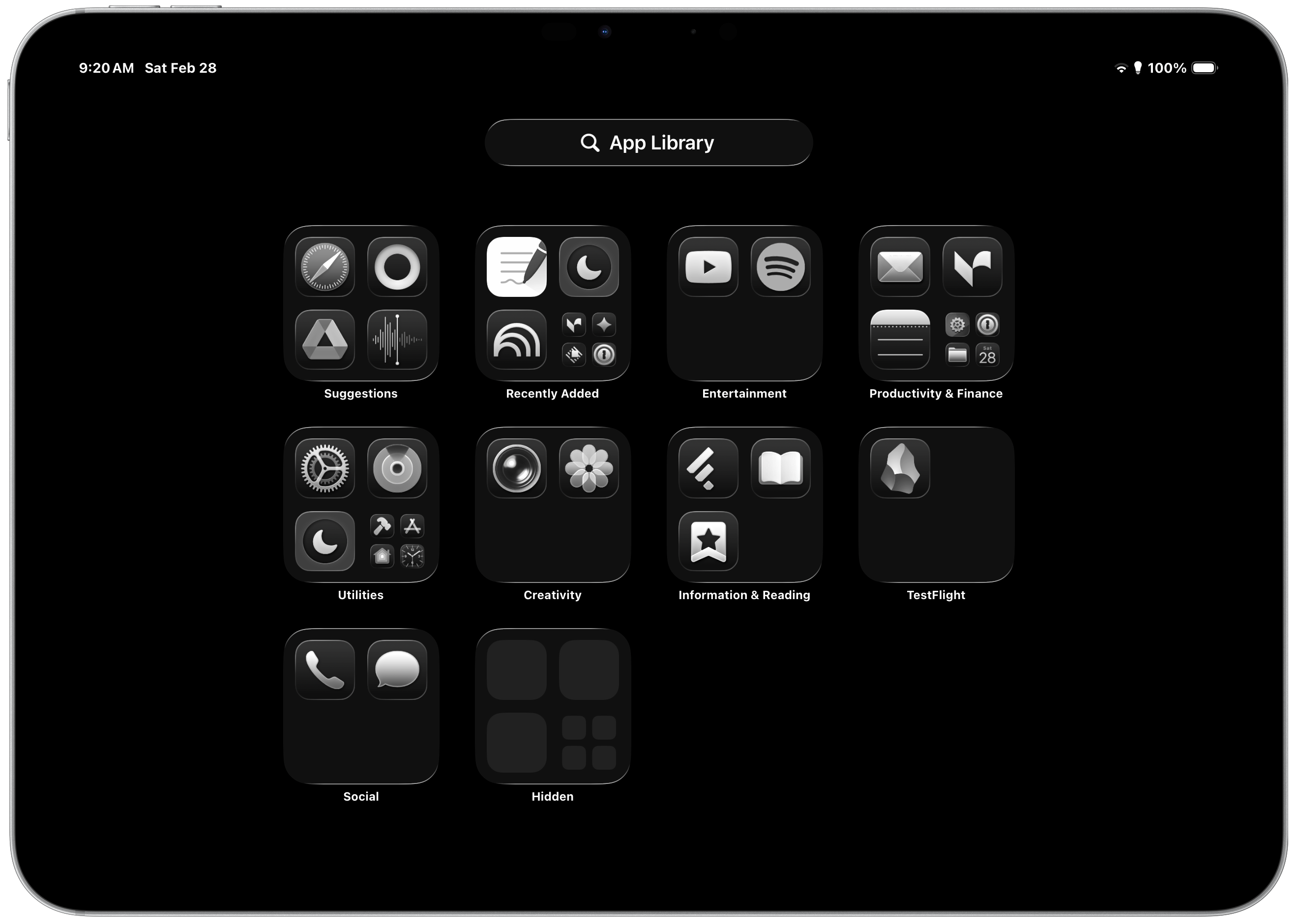
The vast majority of those are “Productivity and Finance” (16) and Utilities (14).
Writing Apps
For writing, I’ve kept Obsidian, my primary writing app on both my iPad and my Mac. I’ve really enjoyed at least starting writing here.
I’ll usually finish articles in Ulysses because it’s easier to publish to external sources. Obsidian is also a research buddy. Pretty much all of my text makes it into Obsidian at some point.
I also have some miscellaneous text apps:
Notes, my primary notes app
Tot, which serves as a scratch pad
Goodnotes, which is where I like putting my written notes
reMarkable, which syncs notebooks from my Paper Pro Move
Google Drive…just in case. I figured reMarkable could sync to and from Google Drive, so why not.
Notably missing here are Ulysses and Notion. While I’ll use Ulysses to publish articles, I sync my Drafts folder to both Obsidian and Ulysses, so I only need one of them.
Notion is my content planner, but I don’t usually write directly in it.
Research Apps
That leaves research apps. For that I’ve kept:
GoodLinks, Feedly, and Sublime, which is where I keep articles and highlights. If I need to easily access something interesting I came across, they’ll be in these apps.
Google Gemini and NotebookLM, which are the LLM flavors of the week3. I’m honestly not sure how much I’ll actually use these. Gemini is what I use as a copy editor for drafts, so if I’m feeling particularly driven to finish a piece, it will come in handy.
Preview and Books, for PDFs…or Books. I considered Kindle, but all of my Kindle highlights sync to Sublime.
The most dangerous apps I’ve kept are Safari and YouTube. If I need to look something up, or reference some video, these will come in handy. But they also pose the greatest risk of distraction.
The Rest
Everything else should help me stay focused or write more easily.
The Utilities are apps like Actions, Shortcuts, and other things I probably could delete, but I don’t open them. They add features to Shortcuts or other apps, and are not distractions. I’d rather have them just in-case, so something doesn’t break.
I did keep Spotify, because music is life. Though I might nix that in favor of my new mp3 player when it comes.
Why I'm Buying Music Again in 2026

I bought a modern iPod — not because I needed one, but because I realized I didn’t actually own most of the music I thought I did.
I also have Raycast for my text snippets. This reduces the amount of times I have to go to Safari to find a link. Many of them are stored in Raycast.
There are a few Safari extensions that will make my life easier. Momentum to keep me focused in-browser. Keyword Search to make searching my own sites easier with keyboard shortcut, and Noir, which adds Dark Mode to websites that don’t have it.
Finally, I kept Mail and 1Password, in case I needed to access some website.
But as I mentioned, this is only half the battle. The rest is the Settings.
Appearance
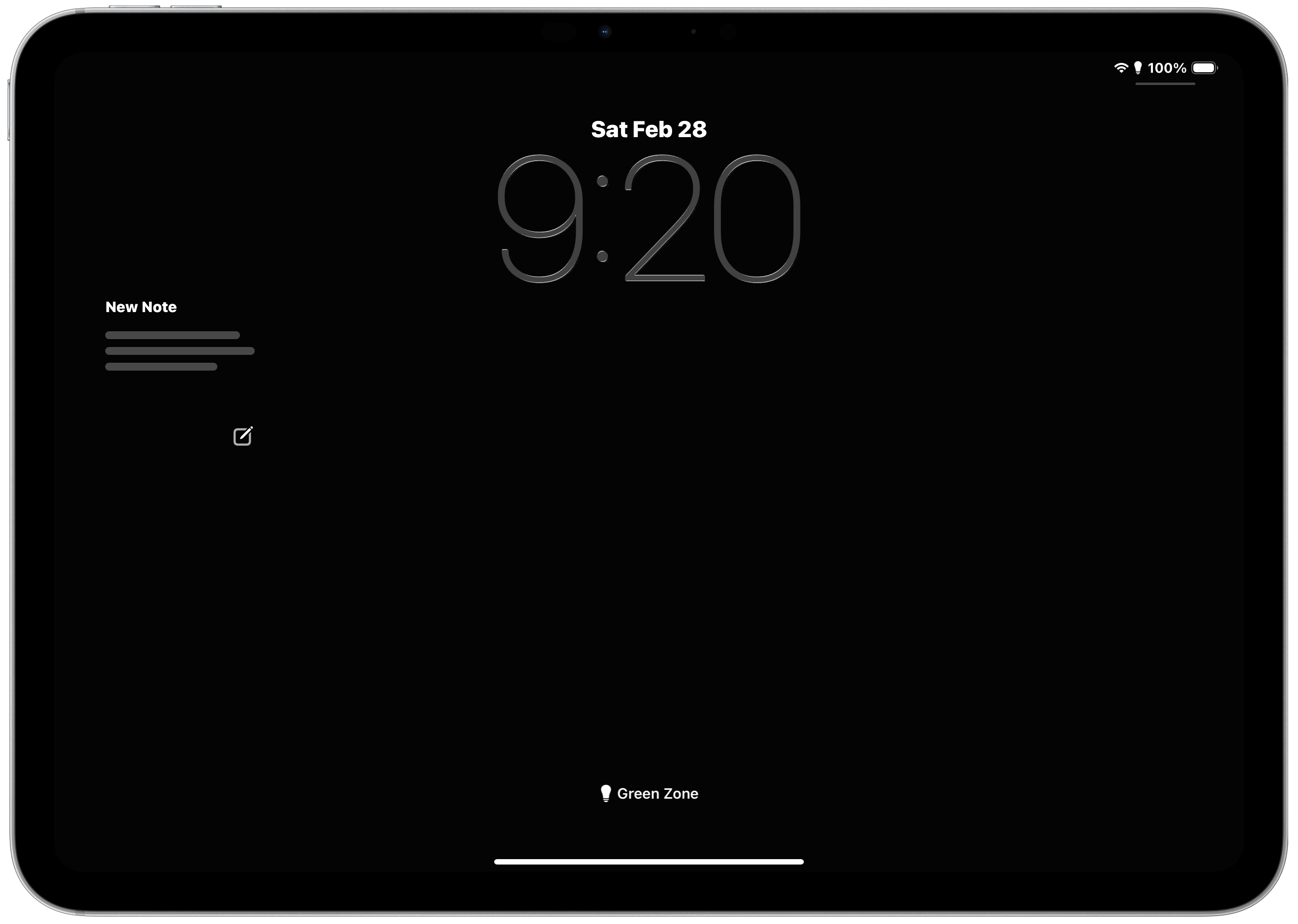
I already mentioned the changes I made to the exterior of the device. To help blunt the cornucopia of colors even more, I made the following changes to the appearance of the device:
Black Wallpaper
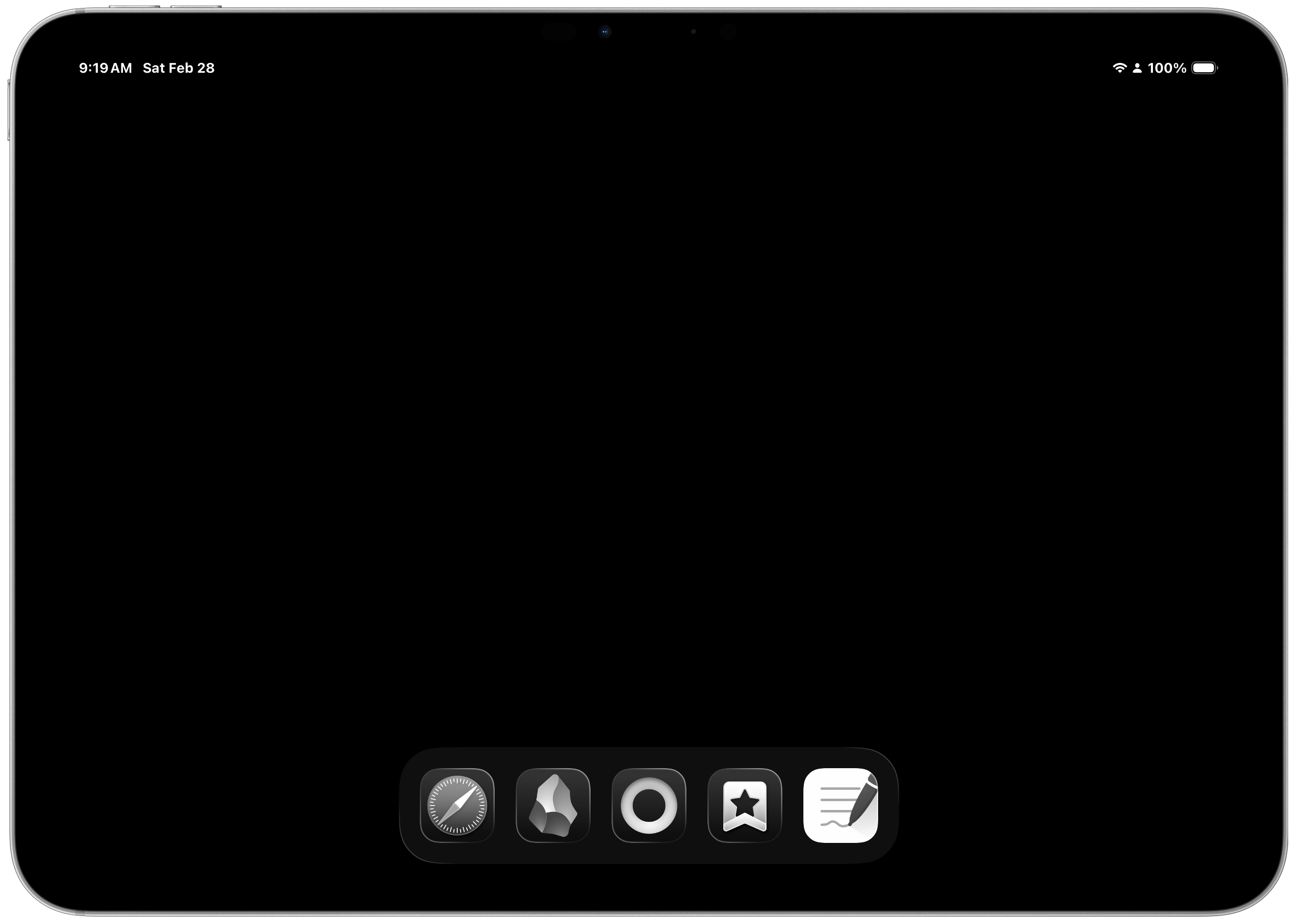
The Home Screen is “clear” to give it the black and white feel.
The lock screen has 1 widgets to prioritize quickly getting into Obsidian.
There are NO widgets on the Home Screen. Just 5 icons: Obsidian, Safari, Good Notes, Tot, and GoodLinks.
Dark Mode is always on.
My Focus mode is set to Green Zone (which doesn’t necessarily change the appearance right now, but it can).
Something I considered was setting the Color Filter so that the device was completely greyscale. But I didn’t really like that, and figured I’d rather have color when I’m browsing or highlighting.
Device Navigation
I also wanted to make it hard to easily switch between apps or have apps and media surfaced when I don’t want them.
While I can’t turn off CMD+Tab for switching apps (as far as I can tell), I can disable access to the Control Center. Swipe actions keep me in the app at all times.
I also turned off App Library in Dock, and App Suggestions in Dock. My Dock is very focused.
When I search, it’s an extremely limited set of apps and files I see. That means I won’t inadvertently get distracted by some random website or app when I’m searching for something on the iPad.
Finally, I turned off Background App refresh for everything except Obsidian and GoodLinks, since I suspect I’ll be in them the most and don’t want to wait for syncing (or at least, I don’t want to wait long).
But the biggest impact (that I know you’ve seen coming since like the second sentence)…
I Turned Off All Notifications
I completely turned off notifications on the device. No app can send them, no badges.
Not even Find My!
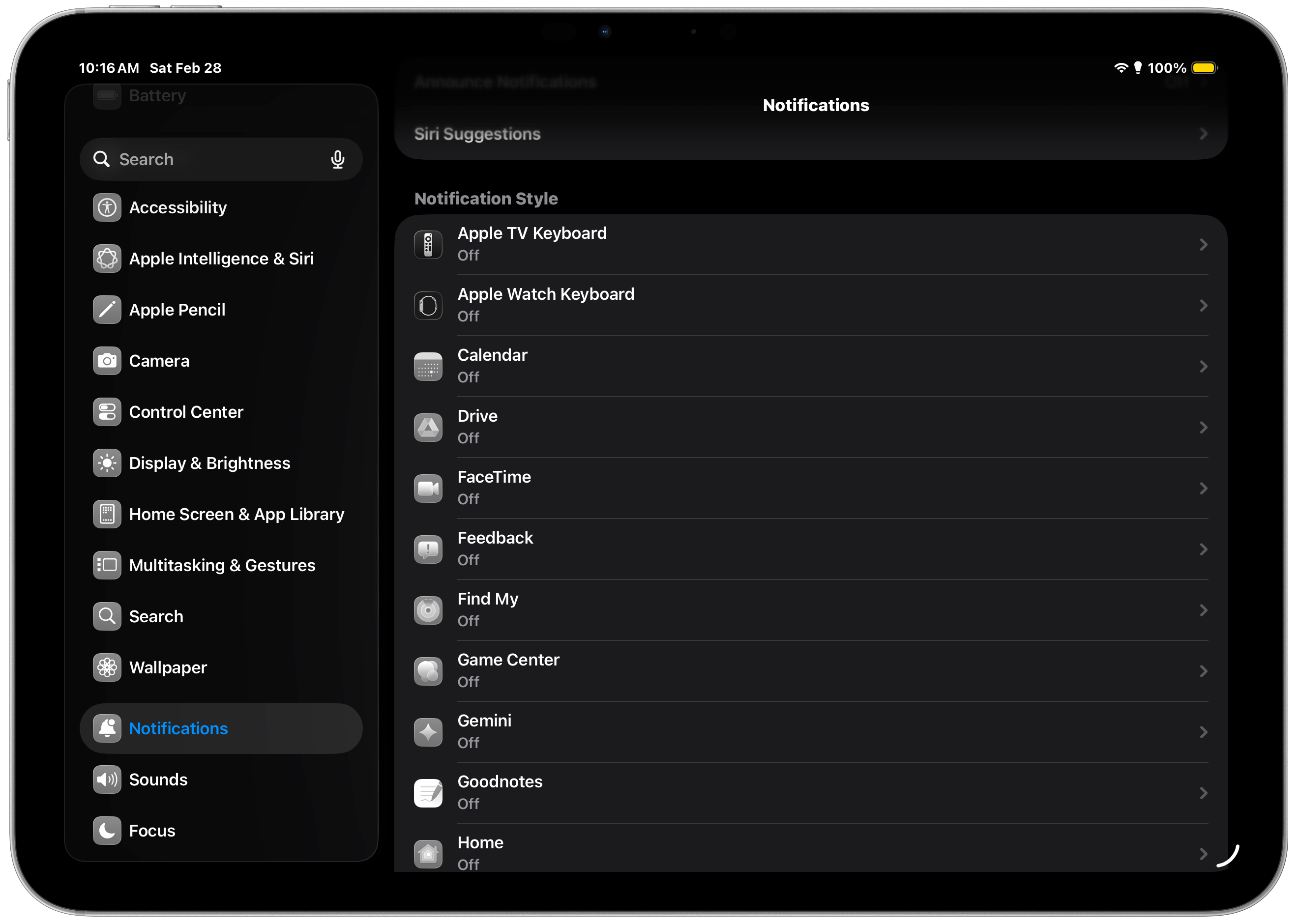
I figured if I’m trying to mimic the reMarkable, it should get the same amount of notifications — which is none.
This is the most important action I can take for a distraction free device. The goal is to leave my phone elsewhere and put my watch in Do Not Disturb, so I can really focus on writing, while still having access to resources when I need them.
Pitfalls
I want to wrap up with some potential pitfalls.
Since I can’t completely delete Messages, I may be tempted to check them, even without notifications. The same thing goes for Mail.
I want to explore options for this that don’t require a monthly subscription. Perhaps the Brick is an option — though if I need 2FA from email, I’ll still need to keep the Mail app unlocked.
The same thing goes for YouTube. I really want to get into the mindset that this iPad is only for writing.
I’ve de-facto made a decision that when I want to watch something on the go, it’s on my much smaller phone. Though I also want to be in the habit of reading more than watching stuff on the go.
I will also have to be very intentional when deciding what device to take with me when I leave the house. If I plan to do more than write, my laptop will have to come.
Though that may be a good constraint and not a pitfall.
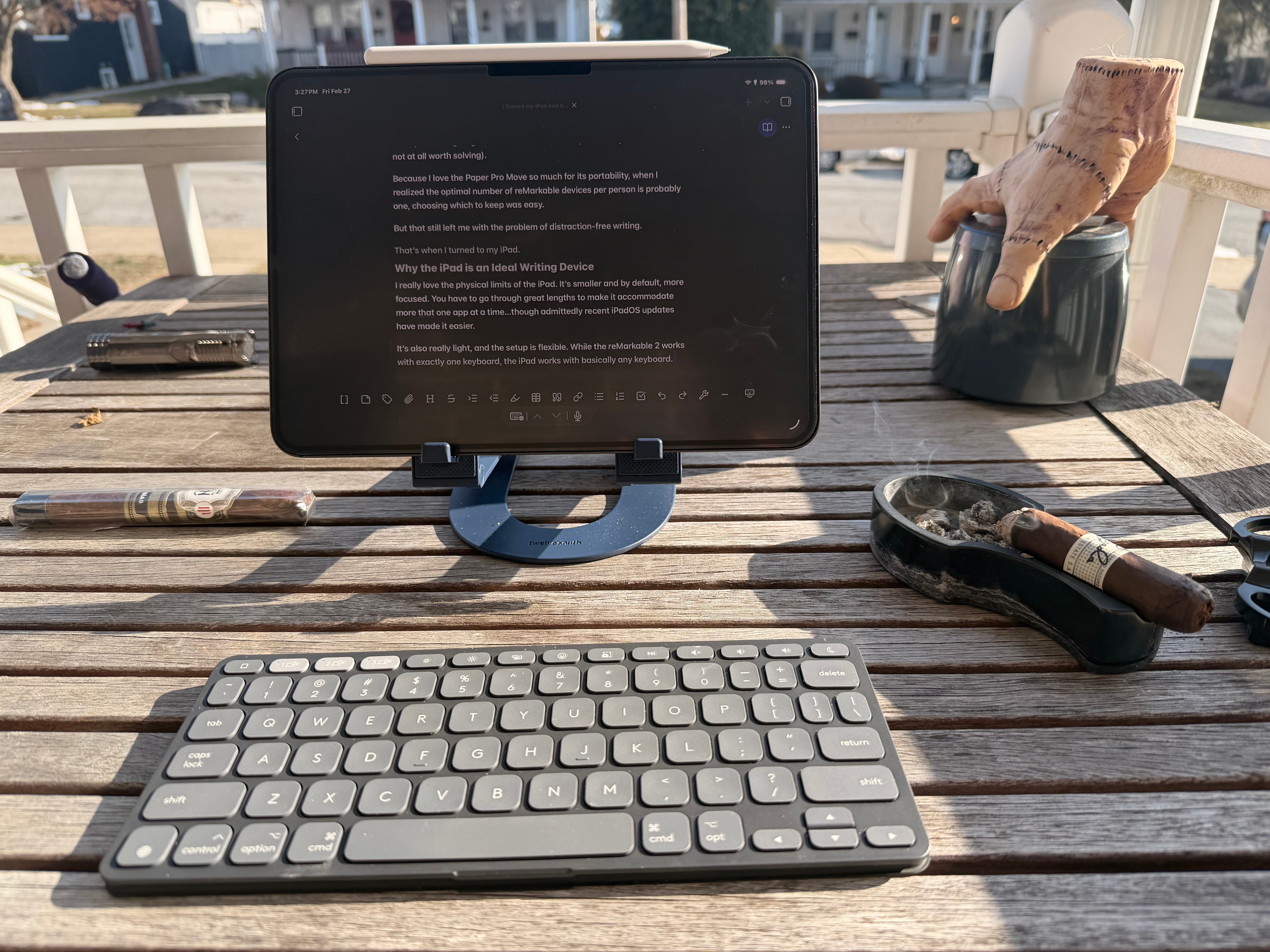
The last one feels silly, but I have a few keyboards, including the Apple Magic Keyboard for iPad. That’s so bulky though, I’m not sure I’ll like it better than something like the Twelve South Curve Mini and Logitech Keys-To-Go.
I’m Excited
All-in-all, I’m excited for this experiment. I’m sure there will be optimizations I can make. And I’ll for sure put out a video walking through the settings so you can see what I’ve done more concretely.
And yes…I wrote this entire article on the reMarkable-ifed iPad.
I don’t begrudge reMarkable for this. I suspect it’s a problem that’s not at all worth solving.
At least, not in a super noticeable way.
Though Raycast Pro + Advanced AI is very slick.
Really cool. Just this week, I changed my iPhone and iPad to old-school Palm Pilot style black, white, grays, and greens to desaturate the attraction, and it works!
This was so fun to read as a person who just got a free write AND has been considering commandeering my partner’s remarkable.
Maybe I just need to de-distract my iPad. I’m sure I could create a focus mode to auto put it into distraction free mode. 🤔